
Collaborate & interact with your buyer
Provide your buyer with a direct, instant way to interact with you, ask questions, and share the Destination with other stakeholders invold in the deal. Below is an overview of how collaboration features—such as Chat, Pin-a-Comment, and Invite Others—work.
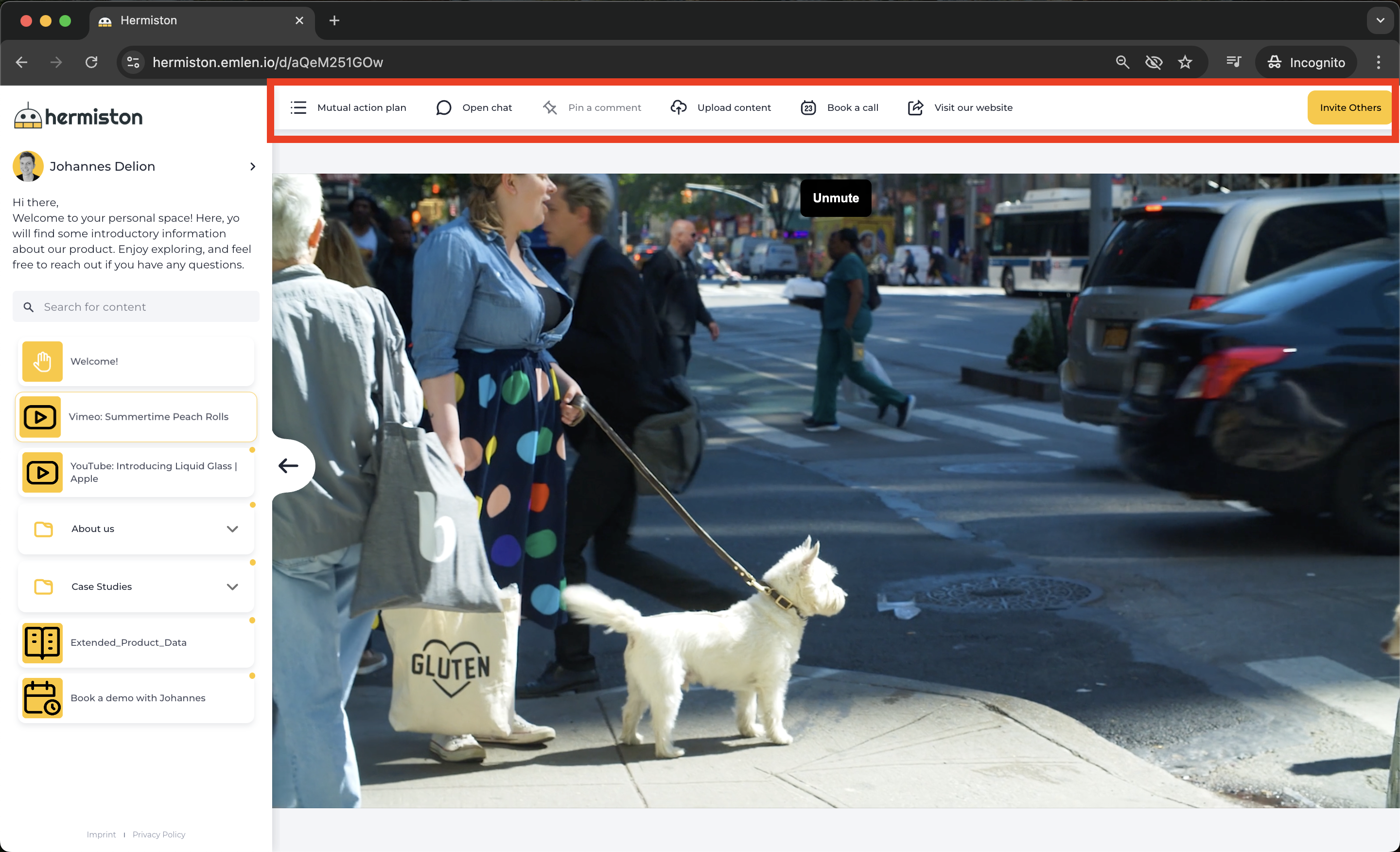
Collaboration Features
Email verification ensures that only valid email addresses are used to log into the collaboration features. When enabled, contacts must confirm their email by entering a code sent to their inbox before using features like Mutual Action Plan, Chat, Call, or Pin-a-Comment. Invite Others and Content Upload always require verification (i.e. for these features the confirmation code is always enabled).
Mutual action plan
- Define tasks where you can collaborate on together with the buying center
- You can assign due dates and responsible contacts
- If you enable "Contact can manage action items" then the buyer can edit the Mutual Action Plan directly from the Destination (buyer view)
- Attention: this feature sends out automatic messages, reminding the contacts of tasks and due dates
Chat
- Buyers can click “Open chat” to start a conversation with you
- You and all contacts linked to the Destination will receive an email notification about new messages
- You can reply directly in the Destination or via the Chat section in the emlen app (recommended for managing multiple conversations)
- Both you and your buyers can attach files in the chat
Calls
- You or your buyer can start a video call (including screen sharing) directly from the chat window
Pin-a-Comment
- Buyers can pin comments directly on a specific PDF page
- You’ll receive an email notification when a new comment is added
- Use @mention to tag and notify your customer when replying
- A full list of all pinned comments appears in the left panel when you click “Pin a comment.”
Call-to-Action Links
- Enable Call-to-Action links in the settings of your destination.
- The type of interaction depends on the link type you choose
- Links can open directly in the Destination or in a new browser tab (depending on the website’s settings)
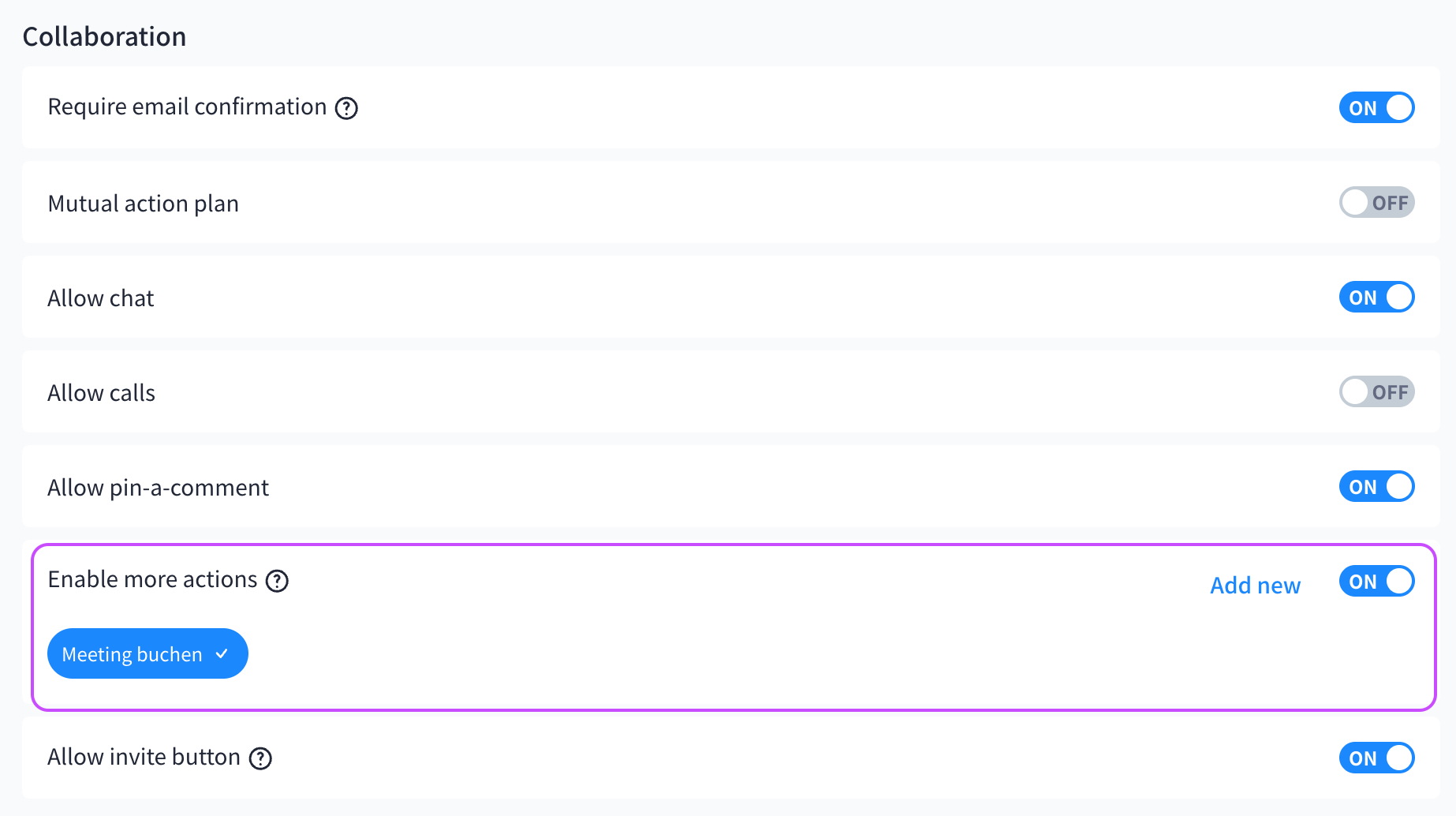
Invite Others
- Your main contact can involve additional stakeholders by clicking “Invite Others.”
- They can enter colleagues’ email addresses and add a short invite message
- You will get a notification when an invitation is triggered
Content
- Enable AI Chat (cf. here)
- Allow content upload
- Allow content download
- Allow content reviews