
Uploading Excel files
When you upload an Excel file to an emlen Destination, it will be displayed in the print view. To ensure it looks professional, please review and optimize your spreadsheet for this view before uploading.
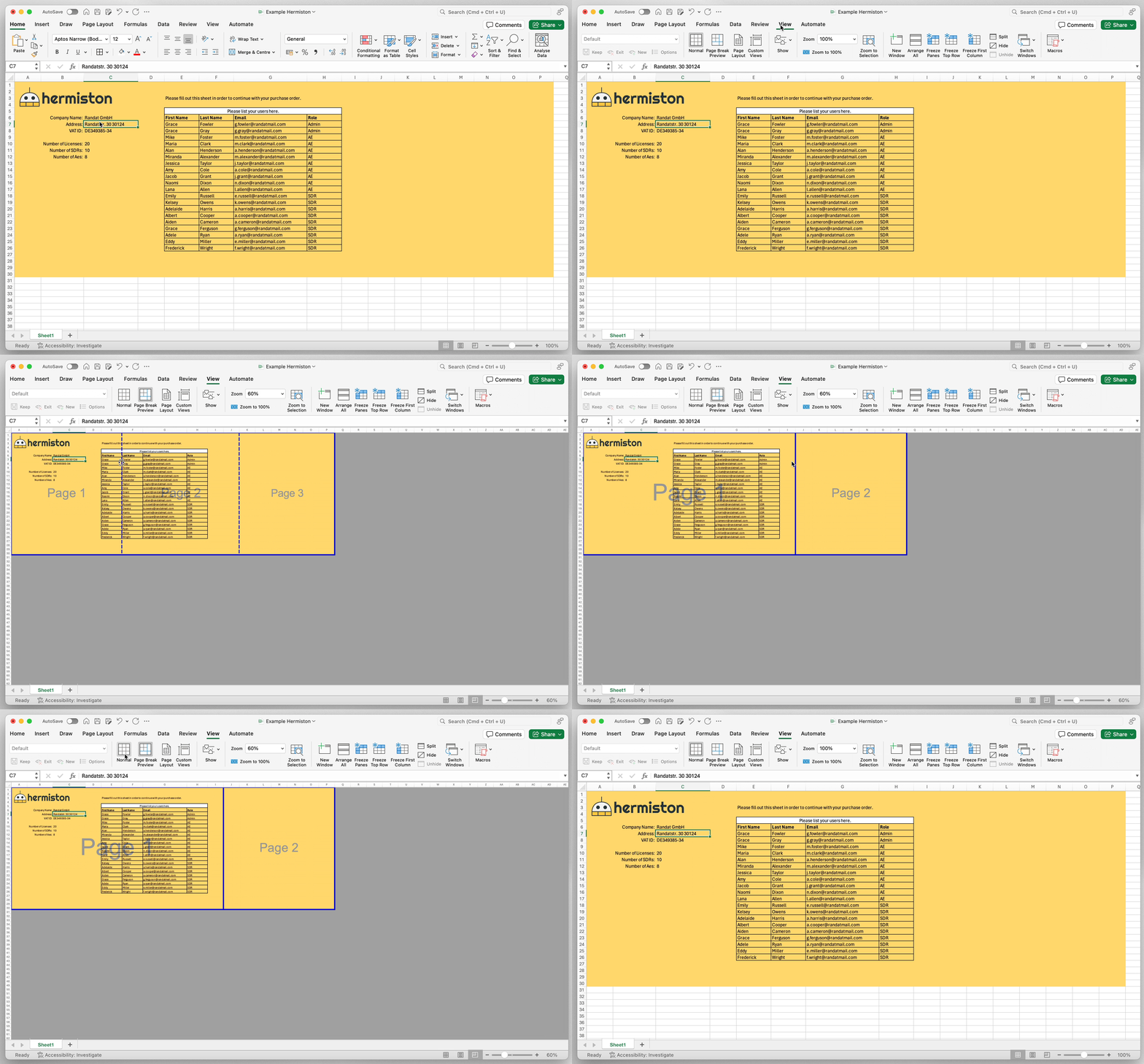
- In Excel, click “View” → “Page Break View”
- Adjust the page dividers so they align with the sections you want to appear on separate pages
- Save the file
- Upload it to emlen, either:
- in the Content Hub (for generic files), or
- as personalized content in a Destination (if the file is customer-specific)
Enabling Collaboration on Excel Files
If you want to collaborate with your customer directly on an Excel file:
- Activate the download and upload option for your Destination
- Ask your customer to:
- Download the file
- Make their edits
- Upload the updated version using the “Upload” feature in the Destination