
Google Drive
The emlen–Google Drive integration makes it easy to keep your content assets in sync by connecting your Drive folders directly to the emlen content hub.
Capabilities
Source
- Add one or multiple Google Drive folders as sources.
- All content within these folders is automatically added to the content hub.
- Optionally, include subfolders in the sync.
Meta data
- Files keep their original names from Google Drive.
- Tags and thumbnails must be added in emlen after the sync.
Supported file types
- All file types that can be uploaded to emlen.
- Google Docs, Sheets, and Slides (note: these must be set to “publicly available” to sync).
Direction of sync
- Sync runs one way: from Google Drive → emlen.
- Changes in Google Drive (added, deleted, renamed) are reflected in emlen.
- Changes made in emlen do not affect the original files in Google Drive.
Change of folders
- If you change the connected folder, the last synced version of the previous folder remains in the content hub.
- If you disconnect the integration, the last synced version also remains available in the content hub.
Setup
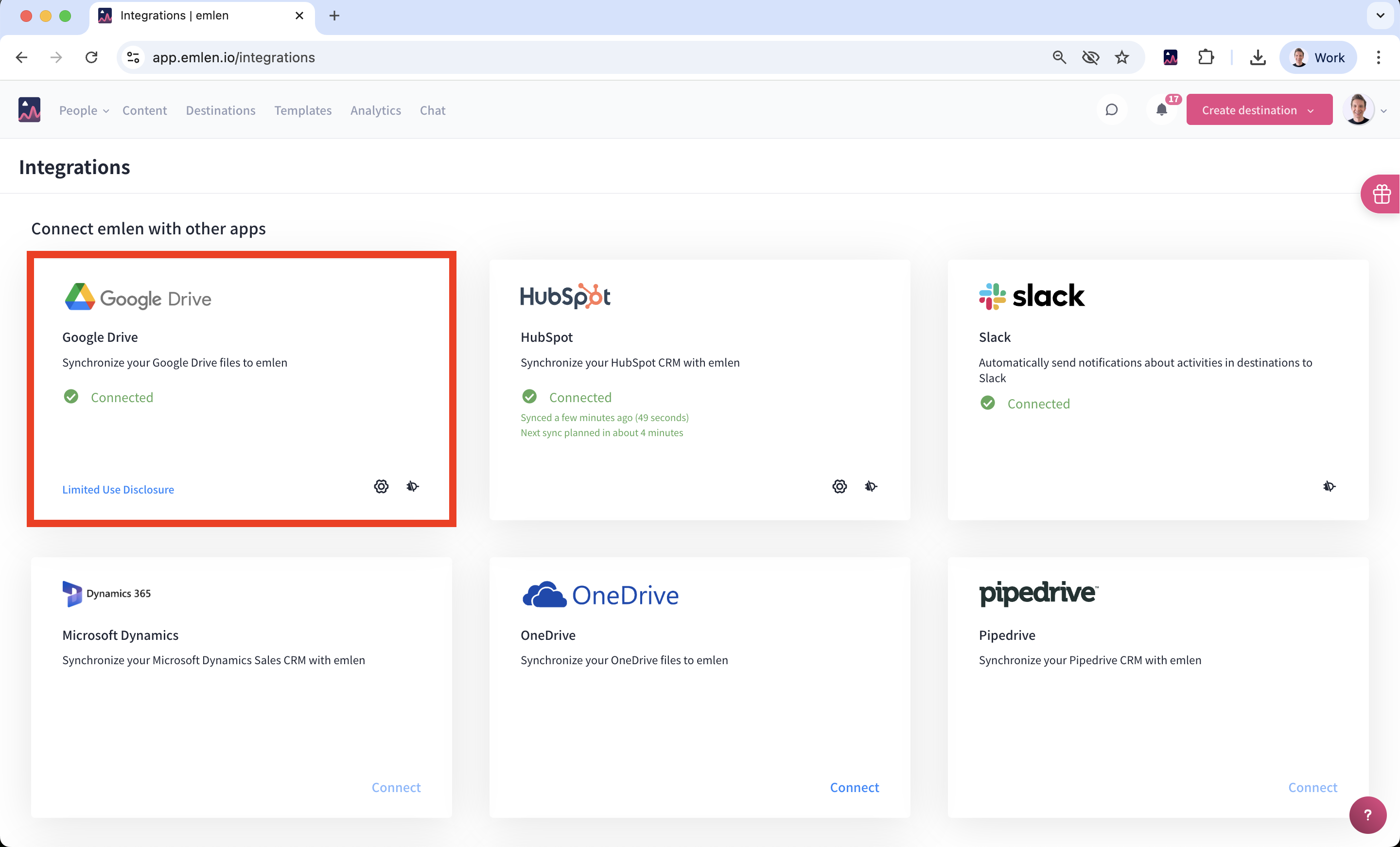
To connect Google Drive to emlen:
- Go to the Integration section in emlen.
- Select "Connect" below the Google Drive folder.
Once connected, your Google Drive content will start syncing automatically.
Note: The user who installed the integration is automatically set as the owner of the synced items. This allows them to edit the items in the content hub, even if they are not assigned the Content Manager role.