Salesforce
The emlen–Salesforce integration makes it easy to keep your CRM and emlen in sync. With this integration, you can:
- Sync contacts, leads, and companies (one-way or two-way)
- Track emlen activity events directly on Salesforce (contact or opportunity page)
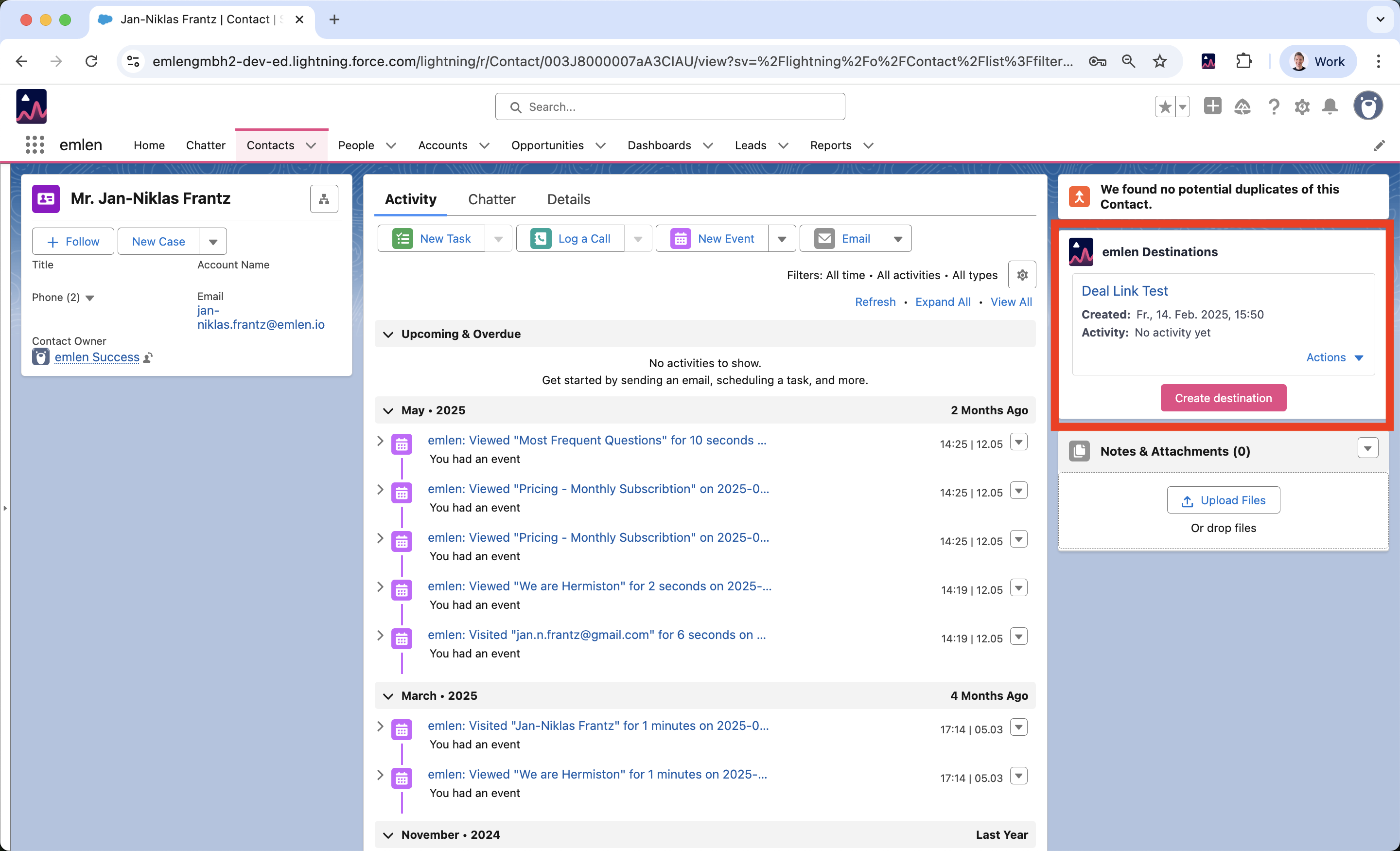
- Create emlen Destinations from within Salesforce (paid add-on, not included in standard plans)
Permissions, read and write rights
When installing the integration, we recommend using a user with the System Administrator role. This role typically includes all the necessary permissions to ensure a smooth setup process.
Required Permissions
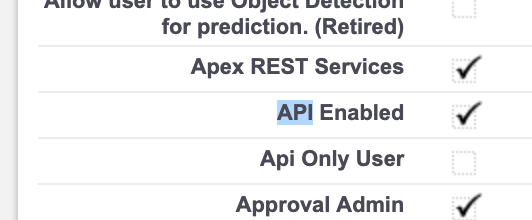
While we believe the “API Enabled” permission is essential, it’s possible that other permissions may also be required depending on your configuration.
Object Access Requirements
To function correctly, the integration needs access to the following Salesforce objects:
Read access on:
- Contact
- Lead
- Account
- Opportunity
- OpportunityContactRole
- Event
- Task
Write access is only needed in specific cases:
- Two-way sync enabled:
- Contact
- Lead
- Account
- Event sync enabled:
- Event
If you are unsure about the exact permissions your user has, we recommend consulting with your Salesforce administrator to ensure all necessary access is granted.
Setting up the Salesforce integration
- Go to the Integrations page in emlen.
- Select Connect under Salesforce.
- Follow the confirmation process.
- On the Configure this integration page, choose your sync settings.
Synchronization method
You can decide how contacts sync between Salesforce and emlen:
- Sync contacts from Salesforce to emlen only → One-way sync from Salesforce into emlen
- Sync contacts from emlen to Salesforce only → One-way sync from emlen into Salesforce
- Two-way sync → Keep contacts synced in both directions
- Do not sync → No contact sync
Tip: When emlen is used effectively (for example, if a Destination is shared internally), it can surface new contacts. To ensure these contacts are also available in your CRM, we recommend selecting Two-way sync.
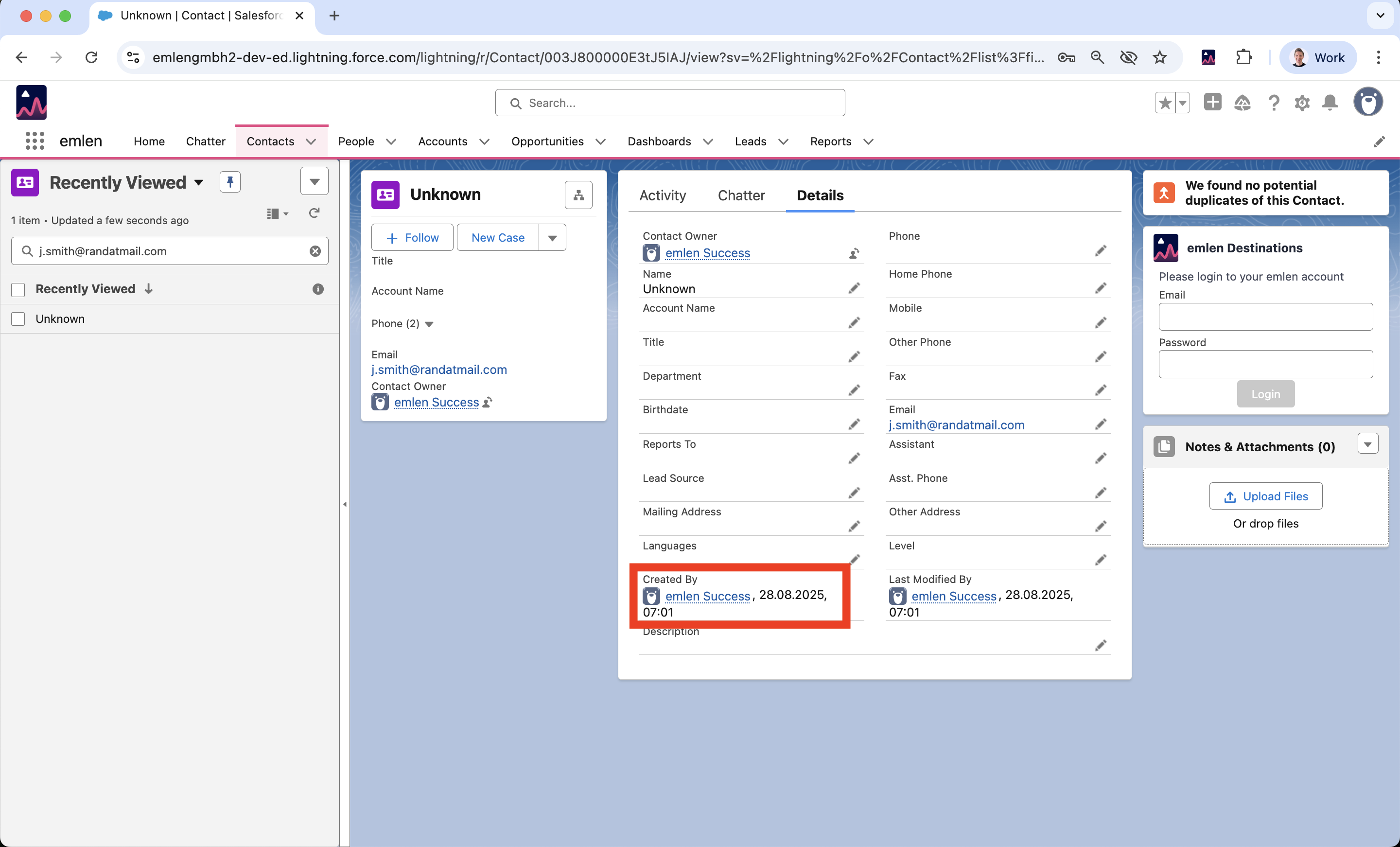
Note: Salesforce contacts from this integration show “Created by” the account that set up the emlen integration:
 Delete contacts from Salesforce when deleted from emlen?
If you enable sync from emlen to Salesforce, you can choose whether deleting a contact in emlen also deletes it in Salesforce.
Also sync emlen contact activity to Salesforce?
When enabled, emlen pushes engagement activity to Salesforce at the contact and opportunity level.
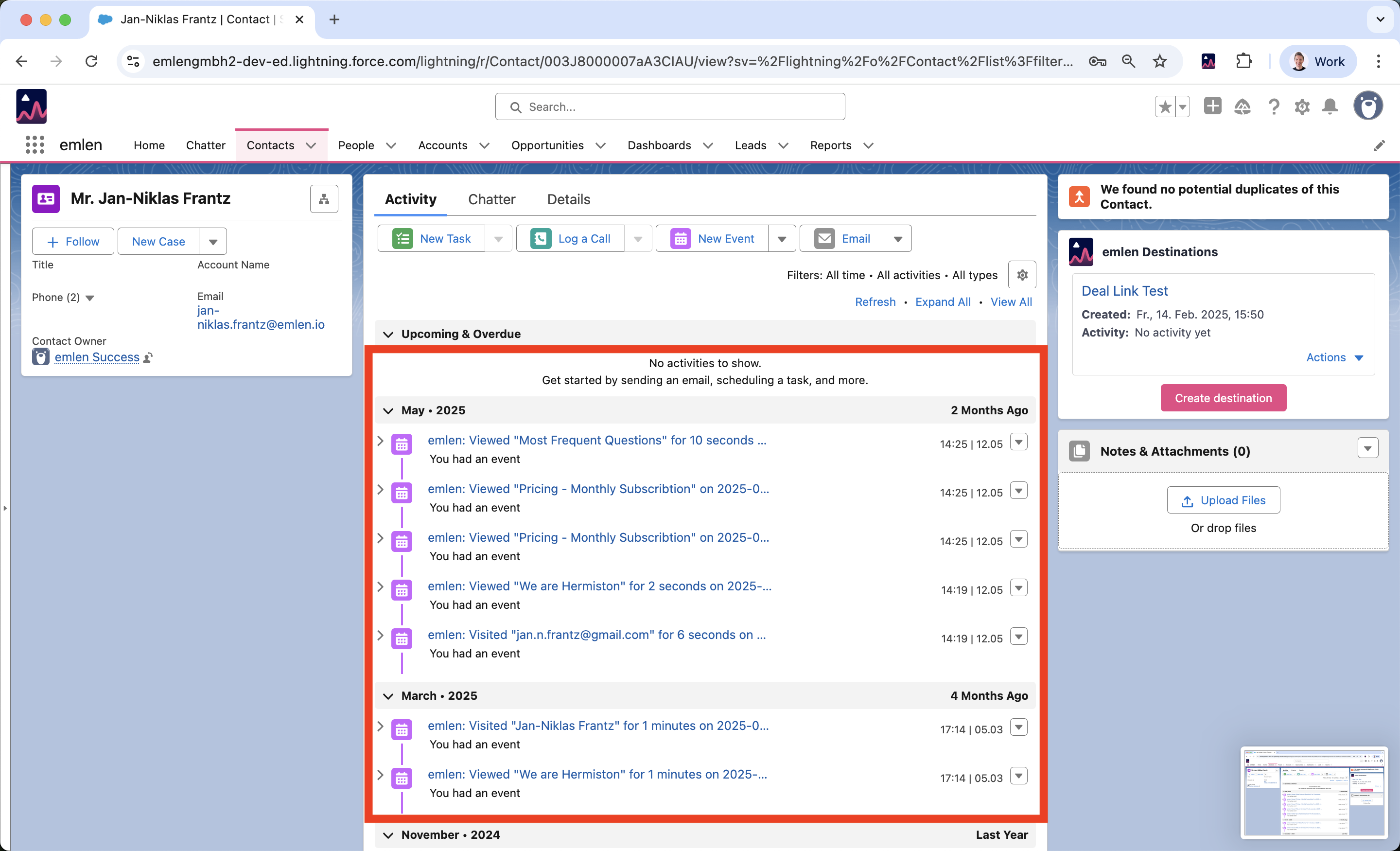
Note: Activities at the opportunity level are only tracked from the time the opportunity is created onward. Historical activity that occurred at the contact level before the opportunity was created will not be visible on the opportunity.
Create emlen Destinations in Salesforce
This paid add-on (installed via Salesforce AppExchange) lets you create emlen Destinations directly in Salesforce. After installation, the emlen widget appears on contact and opportunity pages, enabling one-click Destination creation automatically linked to the records. For details, contact success@emlen.io.