Thumbnails
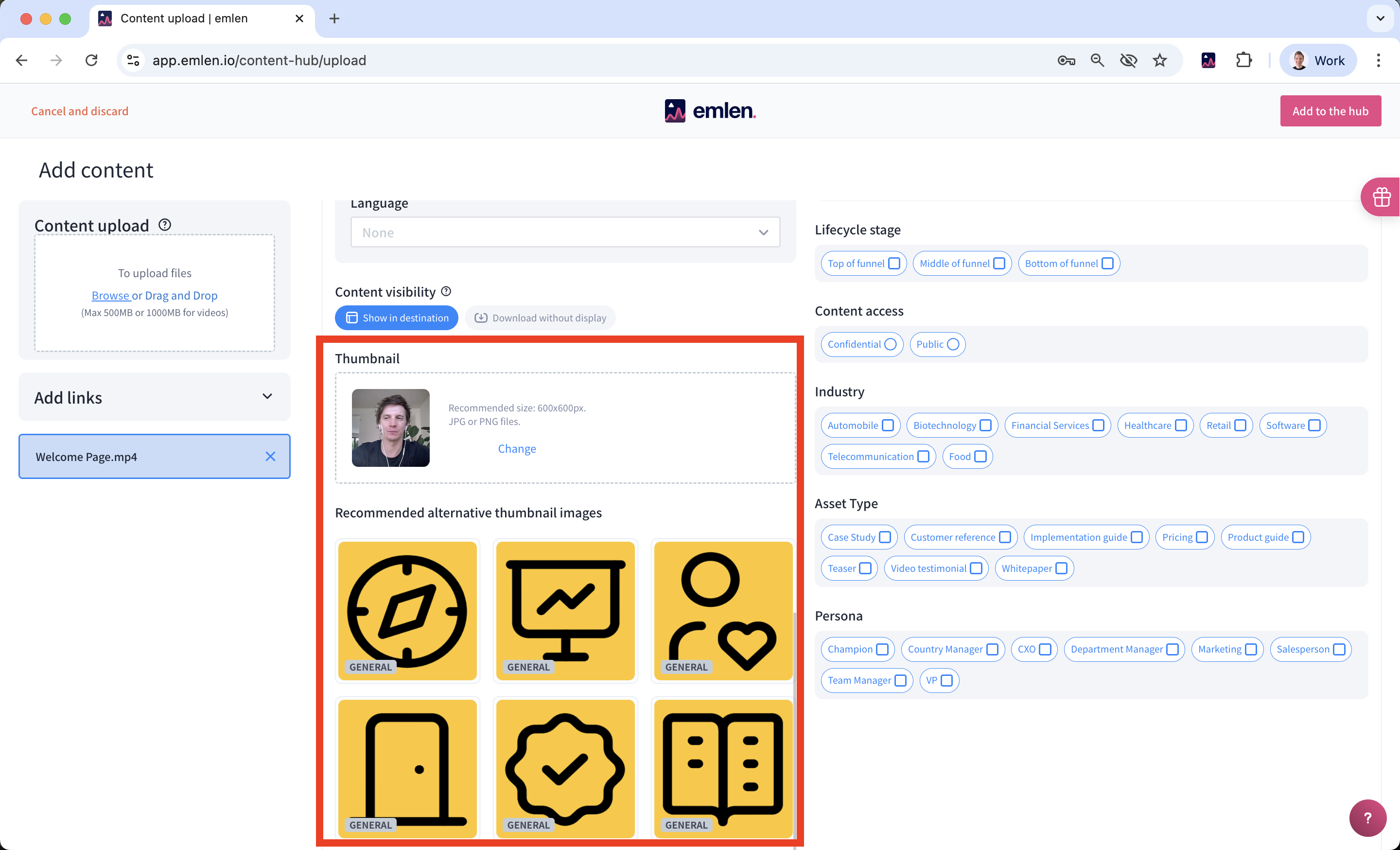
Thumbnails improve the visual appeal of your Destination and help buyers navigate more easily. They appear as icons to the left of your content assets within the Destination.
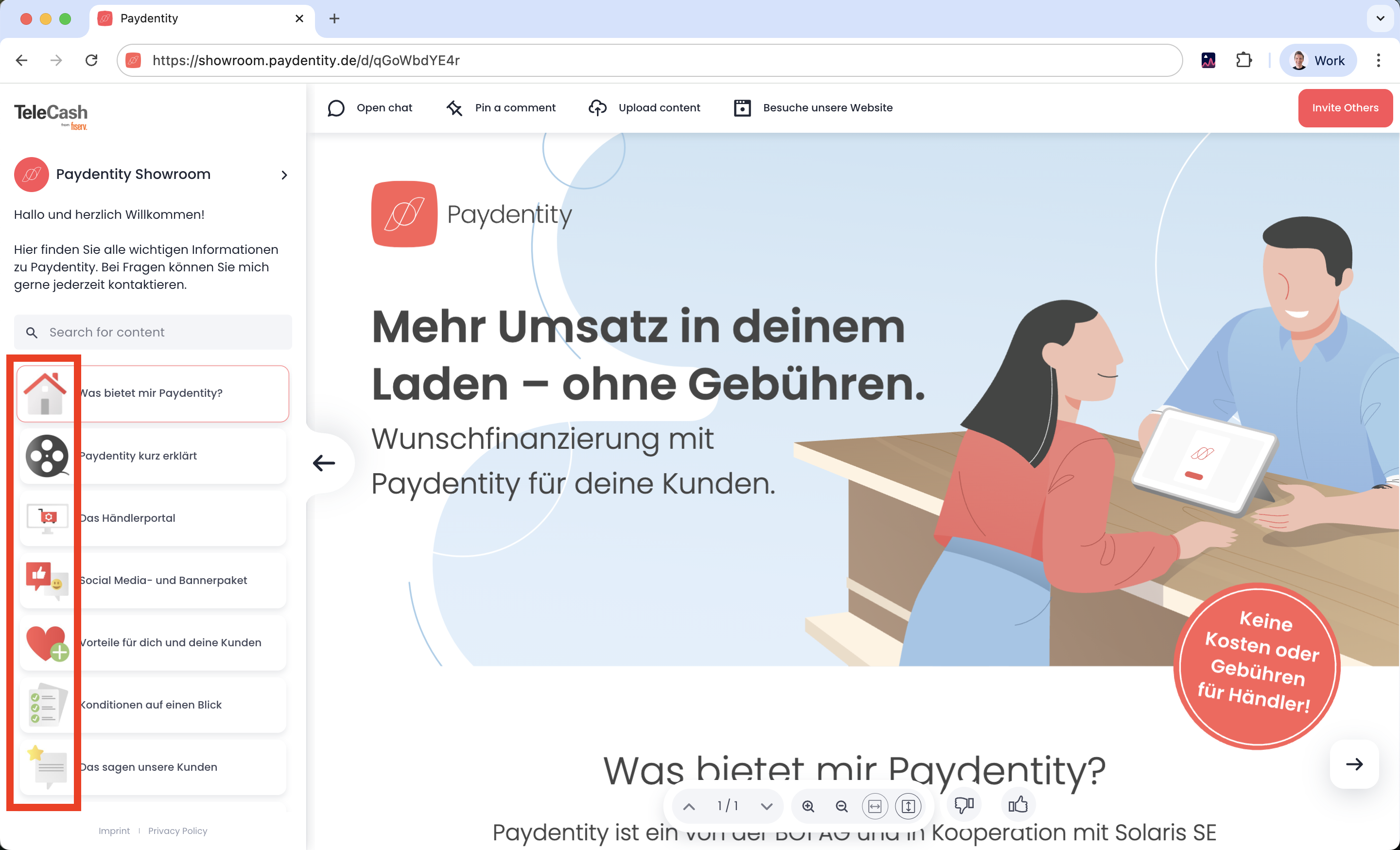
We suggest these themes:
- Home / welcome icon
- Presentation (slides)
- Documents / whitepaper
- Video
- Weblink
- Spreadsheet
- Case study
- Checklist
PNG format, 600x340px
How to Upload Thumbnails
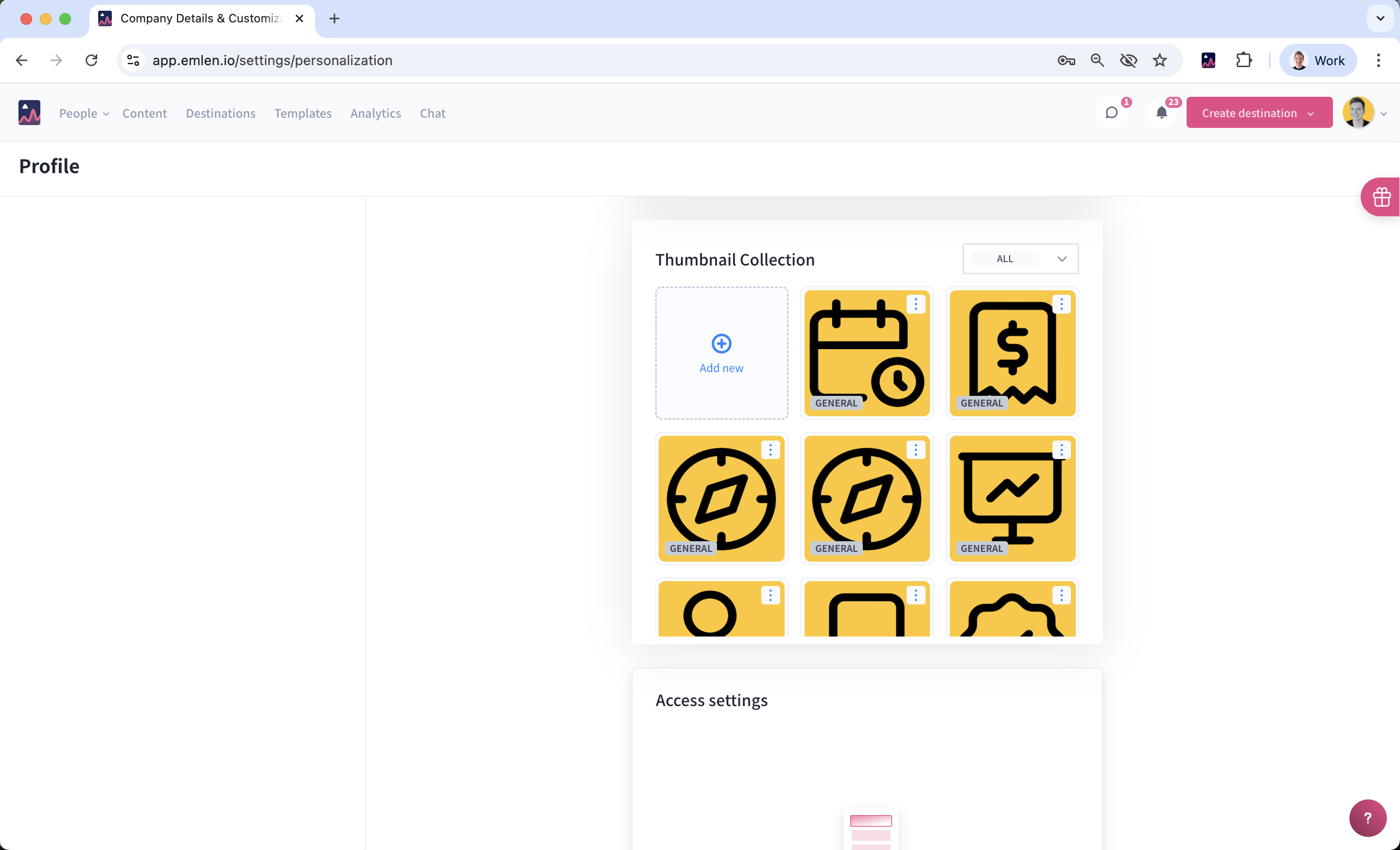
- Go to personalization settings and scroll down to “Thumbnail Collection”
- Upload your thumbnails
- Selecting GENERAL provides the most flexibility, allowing you to assign thumbnails to different content assets later
- Choosing specific file types (e.g., PDF, HTML) will suggest relevant thumbnails based on the file format of the content asset
Assigning Thumbnails to Content
Once uploaded, go to the Content Hub to edit and assign thumbnails to content assets. If no assets have been uploaded yet, you can do so during the upload process.