
SharePoint / OneDrive
Our SharePoint integration allows you to seamlessly sync your content assets from SharePoint or OneDrive with emlen. We support two different SharePoint resource types:
- Sites
- Drives
Obtaining the Directory Resource ID
To sync a resource type, you’ll need the corresponding Directory Resource ID—this requires assistance from an IT admin.
For the Drive resource type (the most commonly used option), follow these steps to retrieve the Resource ID:
- Use the Microsoft Graph API with this query to list all Groups, and copy the id of the group that contains the drive you want to connect
- Then use this query, replacing “{group-id}” with the id copied in step 1, to list all drives of the group, and copy the id of the drive
- Alternatively, refer to this guide: How to Find Site ID and Drive ID for Microsoft Graph API
Setup instructions
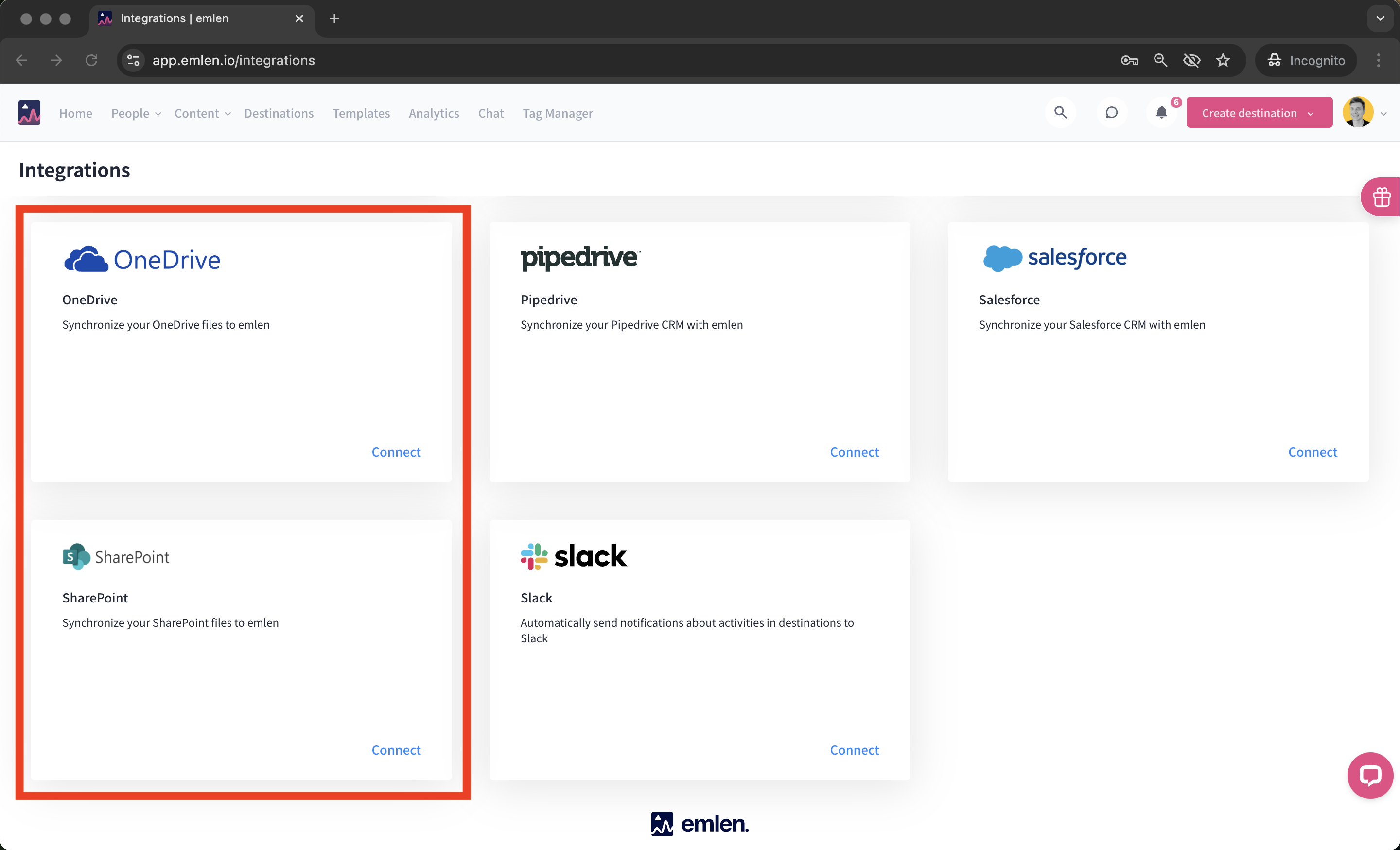
1. Connect to SharePoint or OneDrive - As an emlen admin, click “Connect” on the SharePoint or OneDrive widget.
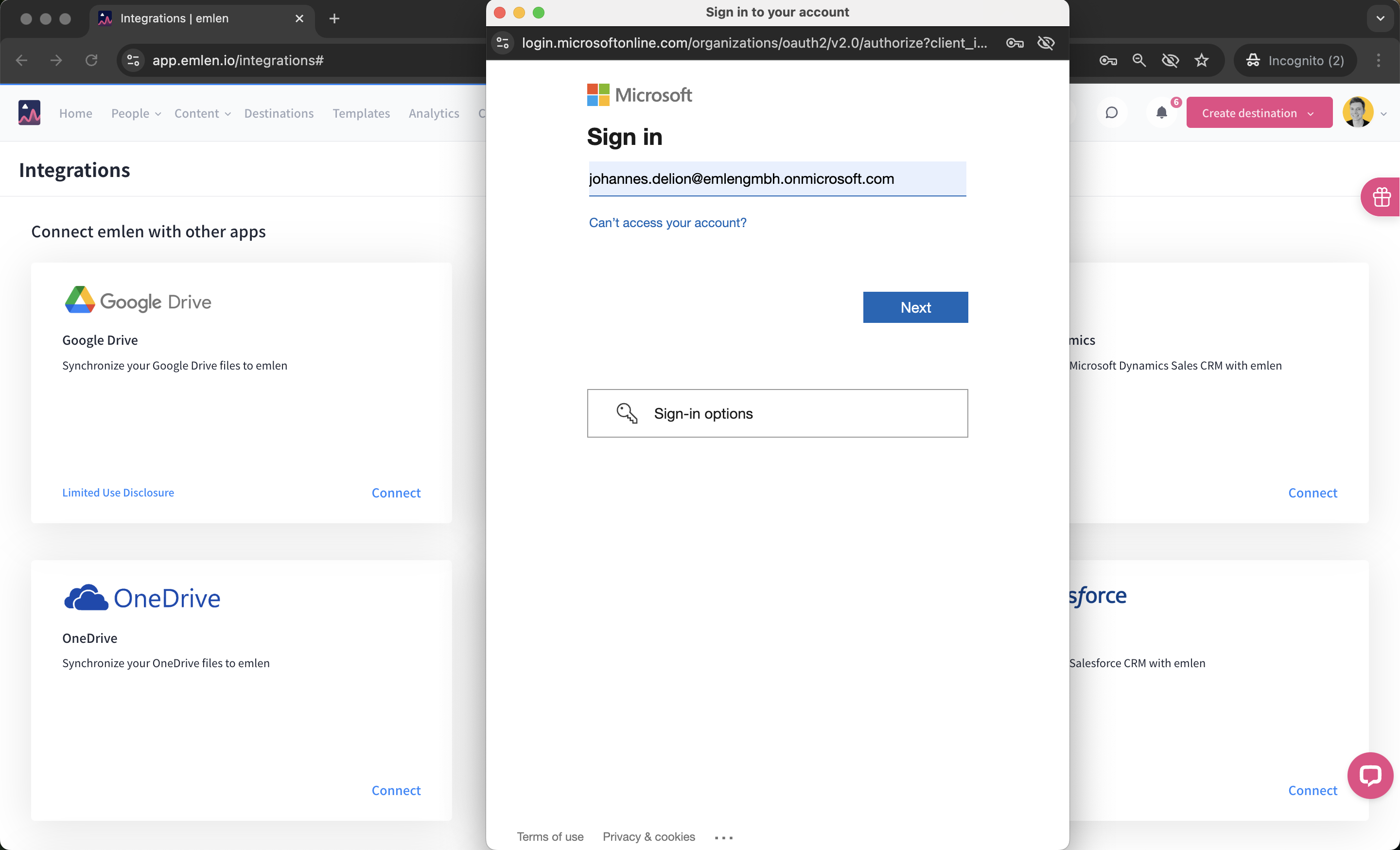
2. Log in to Your Microsoft Account - You must have admin access for authentication.
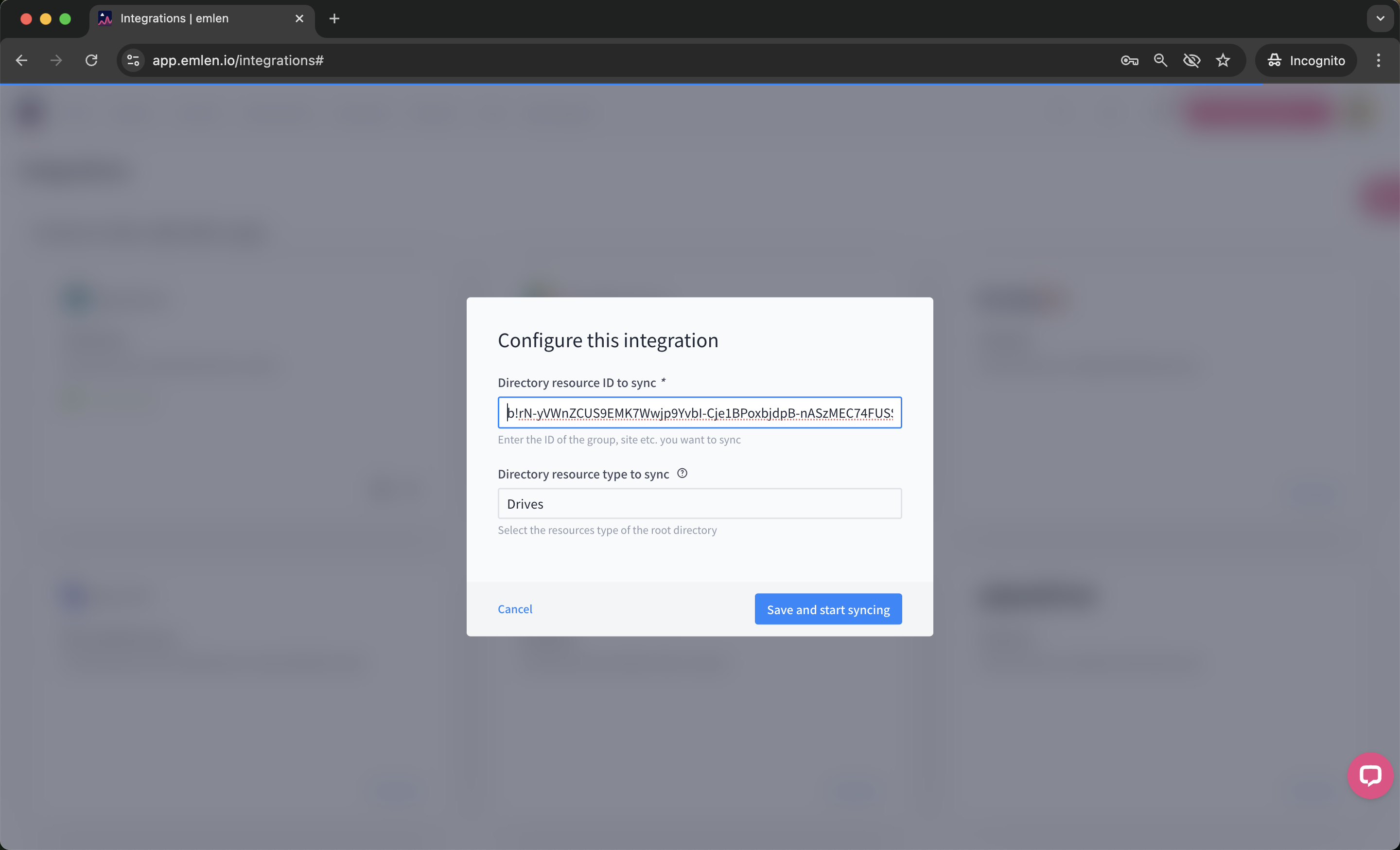
3. Enter the Directory Resource ID - Paste the Directory Resource ID in the designated field and select the resource type (Sites, Drives).
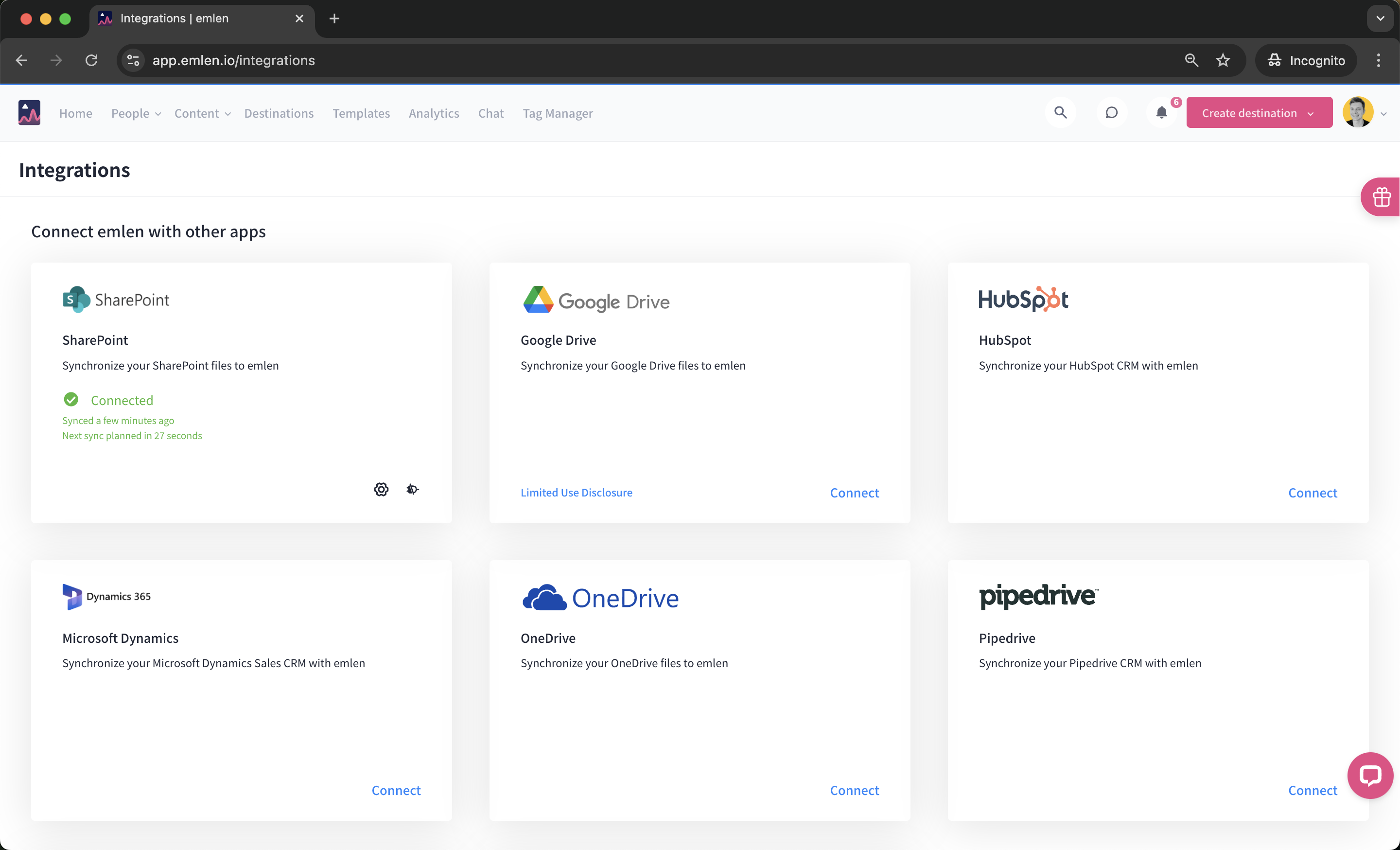
4. Save and Start Syncing - Click “Save and start syncing” to begin synchronization. You should see a "Connected" status.
Capabilities
✅ Automated Content Sync
- All content from the specified folder is automatically added to the Hub.
- Files retain the same name as in SharePoint / OneDrive.
✅ Content Editing and Management
- Added content can be edited in the Content Hub.
- If a file is changed in OneDrive before the next sync, the edited version in the Hub remains unchanged.
✅ Sync Rules
- New files added in OneDrive → Automatically added to the Hub during the next sync.
- Deleted files in OneDrive → Automatically removed from the Hub.
- Deleted files in the Hub → Not restored from OneDrive during the next sync.
- Renamed files in OneDrive → Renamed in the Hub on the next sync.
✅ Folder Selection & Management
- Users can change the folder they want to import from while keeping the last synced content copy.
- Users can disconnect the integration to stop automatic content syncing.
- A OneDrive card button allows users to view the list of connected folders, managed through a configuration modal.
Supported File Types
- All file types supported by emlen (PDFs, videos, etc.)
- Sheets
- Docs
- Presentations
⚠️ Note: You can connect either Google Drive or OneDrive, but not both simultaneously. The Connect button for the other service will be disabled with the message: “Only one content management system can be connected.”